
How I use SmartVideo in a lightbox?
The basics for using SmartVideo in a lightbox, pop-up, or fancybox on WordPress
There are two suggested ways to get SmartVideo working inside a lightbox.
-
Use a WordPress Media Library video and let SmartVideo auto-convert it (easiest method -- requires the Media Library auto-convert setting enabled in the plugin, see Option 1 below)
-
Do a little magic with HTML and use a SmartVideo tag (advanced method)
Option 1: Auto-convert a WordPress Media Library video
Most lightbox/fancybox plugins for WordPress allow you to use a video from a publicly hosted URL ending in a video file format (e.g. “.mp4”), or from your WordPress Media Library.
We recommend using a video stored in your WordPress Media Library or another SmartVideo-supported source. With the plugin's Media Library auto-convert setting enabled (see screenshot below), SmartVideo will see the video inside the lightbox and auto-convert it for delivery.
Auto-conversion from YouTube is currently paused (see Automatic YouTube conversions for the manual-upload workaround). Note that some lightbox plugins block third-party scripts on lightbox content, so an in-library video is the most reliable choice.
If you want to use a video stored in your WordPress Media Library, make sure this setting is toggled on in the SmartVideo plugin:
Option 2: Use a SmartVideo tag in HTML
If you’re comfortable editing some HTML, you can get a SmartVideo tag working in a lightbox. You’ll need Fancybox on your site (here’s a WordPress plugin that makes it easy).
<a href="#video" data-fancybox="images">
<img width="360px" src="https://www.mywebsite/my-video-source.png">
</a>
<div style="display:none;">
   <smartvideo src="https://www.mywebsite/my-video-source.mp4" width="640" height="360" controls autoplay id="video"></smartvideo>
</div>
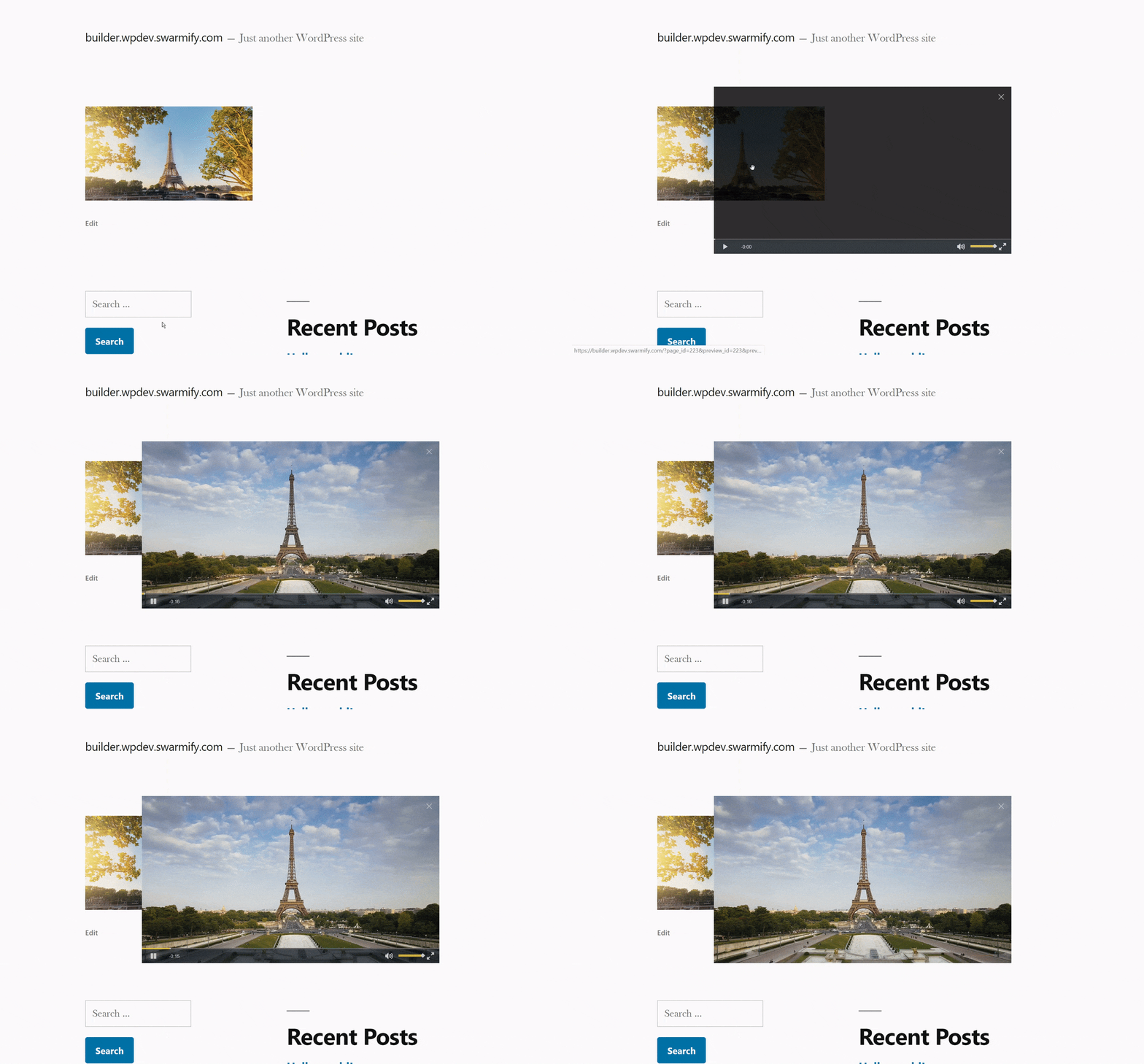
This should result in a lightbox that looks like this:
If you have any questions or need some assistance, let us know!